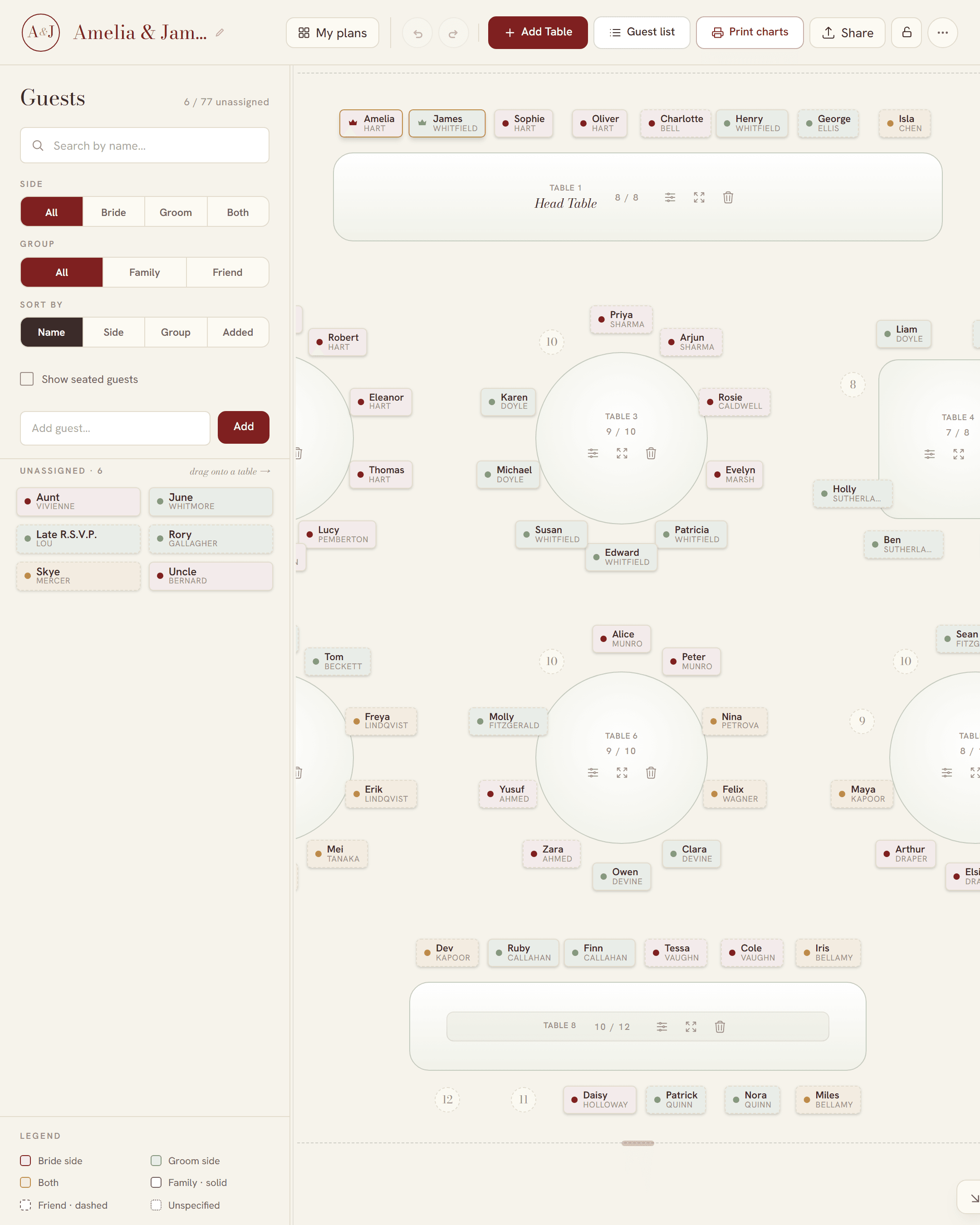
A template gives you a layout. Your list gives you a plan.
Search for a wedding seating chart and most of what you find is a document: a pretty page with “Table One” and six blank lines under it. The design is done and the work is not. You still have to type a hundred and forty names into it, and retype a column every time somebody drops out.
Importing the list inverts that. Every row in your spreadsheet becomes a card on screen; every card belongs to a person who is actually coming. There is no gap between “the list” and “the chart”, so there is nothing to keep in step. When a guest cancels you delete one card and the table count updates.
What your spreadsheet needs
One guest per row, and a heading row on top. Only the name column is required. Everything else is optional and can be filled in later inside SeatFlow, so do not spend an hour tidying the file before you try it.
| Column | Also recognised as | What it does |
|---|---|---|
| Guest Name | Name, Full Name | The only column you must have. |
| Side | Wedding Side, Whose Side, Bride or Groom | Bride, Groom or Both — tints the guest card. |
| Group Type | Group, Relationship, Family or Friend | Family or Friend — sets the card’s border style. |
| Draft Table | Table, Table Number, Table No, Assigned Table, Seating Table, Table Assignment | Seats the guest there. A table name that does not exist yet is created with ten seats. |
| Seat Number | Seat, Seat No, Seat Num, Chair Number | Puts the guest in that numbered chair at their table. |
| Role | — | Bride or Groom only. Marks the couple. |
| Notes | Note, Comment, Comments | Anything you want to keep on the card. |
If a heading is not recognised
The import dialog shows you exactly which of your columns it matched and which it did not. Any unmatched heading gets a dropdown: point it at the right field, or set it to ignore if it is a column you do not want in the plan at all — dietary requirements, addresses, RSVP dates. The same file is then re-read with your mapping applied, so you never have to go back to the spreadsheet and rename anything.
Three ways to get the list in
Upload the CSV file
The normal route. Export from your spreadsheet, drop the file in, check the preview, commit.
Paste the rows
Faster when the list is short or lives somewhere awkward. Select the rows in your spreadsheet, copy, and paste them into the dialog’s text box. The same parser reads them, with or without a heading row.
Start from the template
If you have no list yet, download the template from the import dialog. It is a small CSV with the correct headings, a comment block explaining each one, and three example rows to replace. Fill it in wherever you keep spreadsheets and bring it back.
Exporting a CSV from your spreadsheet
- Google Sheets — File, Download, Comma-separated values (.csv). It exports the sheet you are looking at, so make sure it is the guest list one.
- Microsoft Excel — File, Save As, and choose CSV UTF-8 (Comma delimited). Pick the UTF-8 variant if it is offered: it is the one that keeps accented names intact.
- Apple Numbers — File, Export To, CSV, and leave the text encoding on Unicode (UTF-8).
- A wedding website export — most of them offer a CSV or Excel download of the RSVP list. If you only get an .xlsx, open it in any of the three above and re-save as CSV.
What happens straight after the import
Guests with a table in the file are seated at that table immediately; a table name that does not exist yet is created for them with ten seats. Guests without one land in the unassigned tray beside the floor, which is your to-do list — when the tray is empty, everyone has a chair.
If you would rather not start from an empty floor, the setup wizard can generate a set of tables for your guest count and then auto-seat, which sorts unseated guests by side and then by family or friend, and fills one table before moving to the next, so relatives arrive together rather than scattered. Treat it as a first draft to react to. It is far easier to move twenty people than to place a hundred and forty.
From there you drag guests between tables, or onto a specific numbered seat if you care who sits next to whom. See what the seating chart maker does for the rest of the toolkit.
Cleaning up the list once it is in
- The guest list table view is a sortable, searchable spreadsheet of every guest, with inline editing — the fastest way to fix a batch of sides or groups after an import.
- Every guest card takes a free-text note, which is where dietary requirements, plus-one status and “do not seat near” warnings tend to end up.
- Undo works across the whole plan, and version history can restore an earlier state if an import goes badly wrong.
- Re-importing is fine. Bring in an updated list when the last RSVPs land.
Getting it back out again
Export writes a CSV using the same headings the importer recognises, so the file round-trips cleanly into SeatFlow, Excel or anything else that eats a spreadsheet. It is written with a UTF-8 byte-order mark, which is the small detail that stops Excel mangling names with accents in them.
Above the headings the export adds a few comment lines carrying the event name, the couple, the date and the venue. Spreadsheets treat them as text and the importer reads them back into the plan’s details, so you do not have to re-enter them.
When the plan is settled you can turn it into print-ready charts — alphabetical guest list, table poster, table number cards and place cards. Clean, full-resolution downloads are free — no watermark on them.