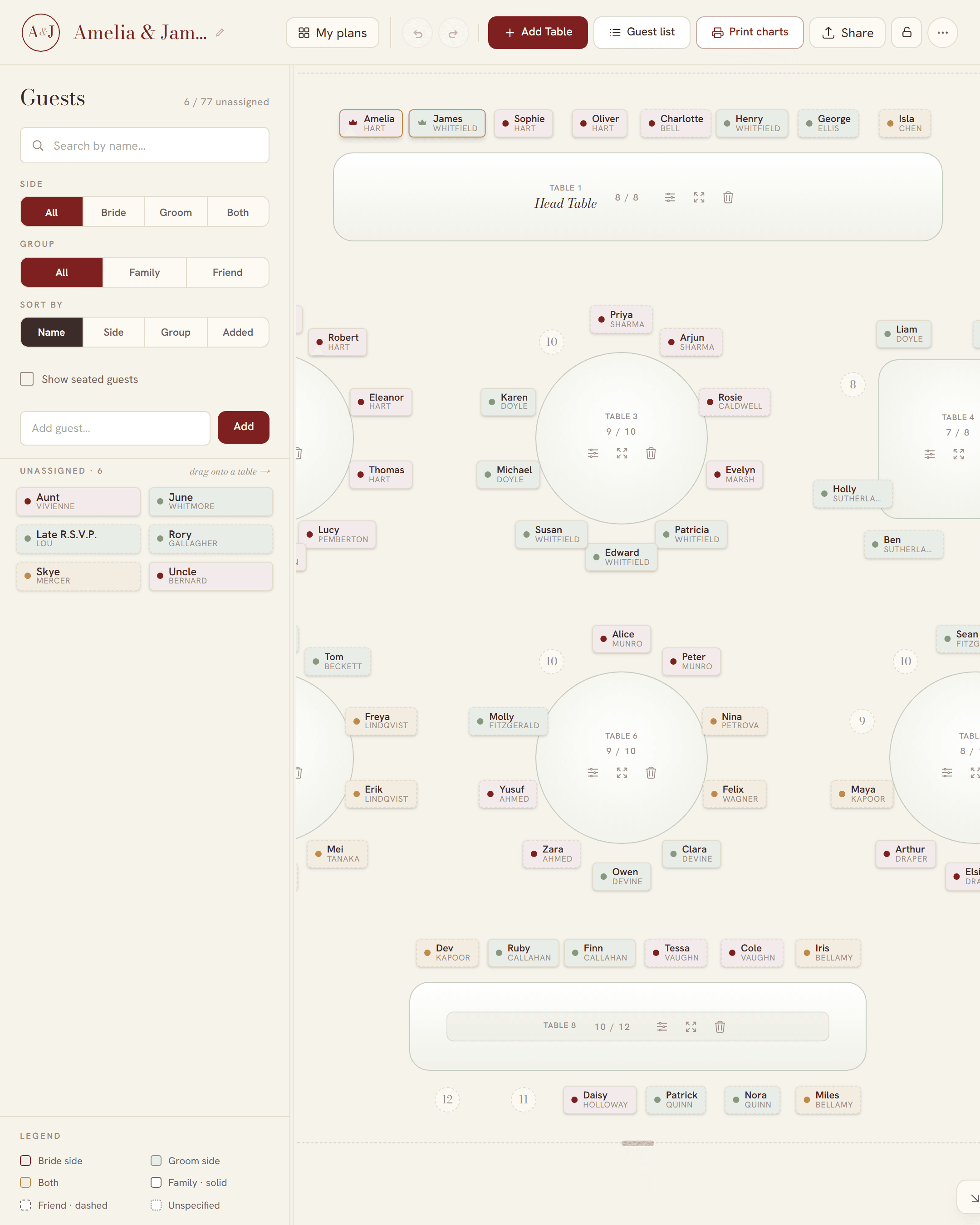
Three ways couples share a seating chart
| Way | One live copy? | Tables and seats? | Notes |
|---|---|---|---|
| Email a PDF or spreadsheet | No | Maybe | Two copies drift apart |
| A shared Google Sheet | Yes | No | A list of names, no tables to drag |
| A shared plan link in a seating tool like SeatFlow | Yes | Yes | Drag-and-drop tables, an edit password if you want one, no account |
One plan, one private link
Each plan lives at its own address: seatflow.com.au/p/ and then a code of 12 random letters and numbers. Nobody can find the plan without that link. SeatFlow has no public list of plans, and plan pages tell search engines not to index them.
- In the planner, select Share.
- Select Copy to copy the plan’s link.
- Send the link to your partner in a message or an email.
On a phone, tap Copy link, or copy it from the address bar. Anyone with the link can open the plan, so send it only to people you trust. Our guide to planning online with no sign-up explains how a plan works without an account.
What your partner sees
- The same tables, guests and seats that you see.
- The names, event name, date and venue that you typed in.
- On a computer, the full planner. Your partner can drag guests, add tables and change seats.
- On a phone, the phone view. It can add guests, edit a guest and move a guest to a table. Table shapes and seat numbers stay on a computer.
A collaborative plan: changes show live
SeatFlow saves each change to the plan’s link automatically. After each save, it sends the change to everyone who has the plan open. Their screen updates without a reload.
You can both work at the same time. When you edit different guests or different tables, both edits stay. When you both edit the same guest, SeatFlow keeps each change to a different detail. For example, your partner moves a guest to Table 6 while you fix the spelling of the name: the guest ends up at Table 6 with the new spelling. If you both change the same detail, for example you each move the same guest, one of the two changes wins.
One rule wins over the others: when one person deletes a guest, the guest stays deleted, even if the other person edited that guest.
On a computer, the status bar shows a count when two or more people have the plan open, for example “2 editing”. SeatFlow does not show names or cursors.
A simple way to split the work
- One of you imports the guest list. The other one opens the same link.
- Split the guests by side. Each of you seats your own family and friends. On a computer, the guest tray can filter by side.
- Leave a note on a guest for the other person, for example “ask Mum about a plus-one”.
- Mark each RSVP as it arrives: Attending, Pending or Declined. A declined guest leaves their table at once.
- When you both agree, download the charts, the table numbers and the place cards.
If your list is still in a spreadsheet, see making a seating chart from your guest list. When the plan is final, our guide to printable place cards shows what prints.
Let a parent look without changing anything
Some people should see the plan but not edit it. For them, set an editing password:
- On a computer, select the lock button next to Share.
- Type a password, type it again, and select Lock editing.
- Give the password to your partner only.
Anyone with the link can still view the plan. Only a person with the password can edit it. The server checks the password on every save, so a save without it is refused. When a device unlocks the plan once, that device stays unlocked.
Unlock on a computer
The phone view does not ask for the password. On a phone, a locked plan is view-only. To edit a locked plan, your partner opens the link on a computer and types the password there.
Send the link by email
In the Share menu, type an email address and select Send. SeatFlow sends an email with an “Open your seating plan” button and the link itself. Email the link to yourself too, or sign in on the SeatFlow home page so the plan is saved to your account.
On a phone, the planner also offers “Email me this link”. Use it to send the plan to yourself, then open the email on a computer.
If someone makes a mistake
SeatFlow keeps recent snapshots of the plan as you both edit. Open Version history from the More menu, and restore an earlier version. Everyone who has the plan open sees the restore at once.