Where a spreadsheet is fine
- Keeping the guest list: names, addresses, RSVPs and meal choices.
- Counting: how many guests said yes, how many children, how many vegetarian meals.
- Sorting and filtering the list, for example by side or by RSVP.
- A small wedding with one or two tables, where you can see every guest at once.
If that is all you need, a spreadsheet is enough. Keep using it.
Where a spreadsheet breaks
Round tables
A spreadsheet has rows and columns. A round table has no first or last seat: seat 10 sits next to seat 1. In a grid, you cannot see who sits beside whom.
Moving guests
To move one guest, you cut a row, paste it under another table and count both tables again. To get a warning when a table is too full, you write a formula yourself.
In Excel or Google Sheets, put =COUNTIF(D:D,"Table 3") beside each table name to count its guests, and a conditional formatting rule such as =AND(D2<>"",COUNTIF($D$2:$D$300,D2)>10) on the Draft Table column to turn a cell red when its table passes 10. The rule skips blank cells, so a guest with no table never turns red. That gives you the warning. It does not show you who sits beside whom.
Last-minute RSVPs
A late decline means more than one edit. You find the row, remove the guest, fix the table count, and change every chart you made from the sheet.
Printing
A spreadsheet prints as a grid. For a poster or place cards, you copy the names into a design tool such as Canva, or you set up a mail merge. After each change, you do that work again.
The same jobs, side by side
| Job | Spreadsheet template | SeatFlow |
|---|---|---|
| Guest list | Good: any columns you like | Imports the list: name, side, group, RSVP and notes |
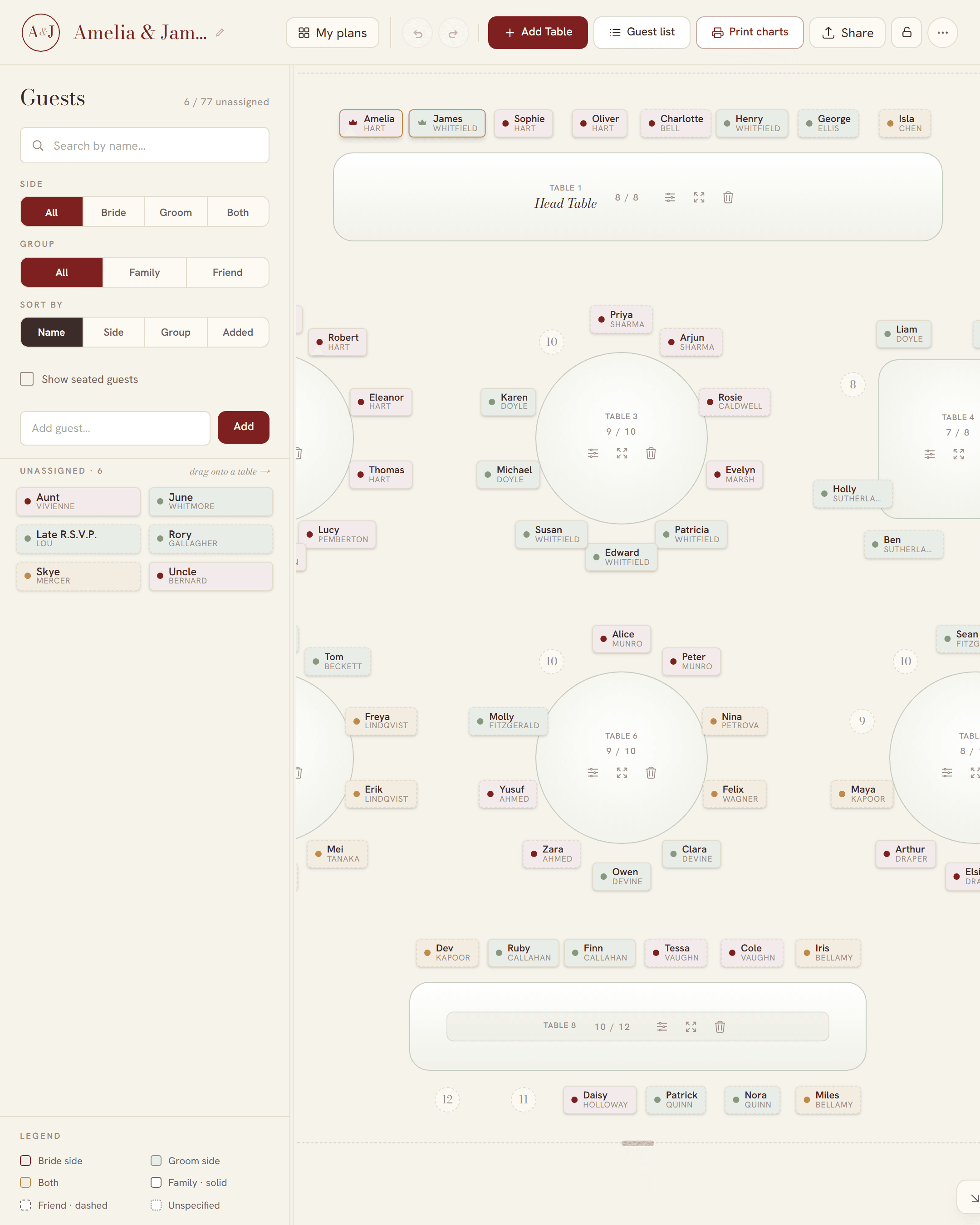
| Table layout | Rows and columns only | Round, long, all-sides and one-sided tables, with numbered seats |
| Move a guest | Cut a row, paste it, count again | Drag the guest. The counts update. |
| A table is too full | A COUNTIF formula, which some templates include | The table turns red and shows “Over by” and the number |
| A late decline | Edit the row, count again, redo the chart | Mark the guest Declined. They leave the table and every print. |
| Print the chart | A grid, or retype the names in a design tool | Poster, guest list, table numbers and place cards as PDFs |
| Plan with a partner | Share the file | Share the plan’s link. Changes show live. |
Our answer: keep the list, plan the room online
Keep your spreadsheet as the guest list. When most RSVPs are in, import the list into SeatFlow and arrange the tables there. After the import, make your changes in SeatFlow. When you need the list in a spreadsheet again, export the plan to CSV. The export has the same columns as the template below.
A free guest list template for Excel, Google Sheets or Numbers
The template is a CSV file. Excel, Google Sheets and Numbers all open it. It has one heading row and eight example guests. Replace the examples with your own guests, and keep the heading row as it is.
Download the free template (CSV)
| Column | What to put in it |
|---|---|
| Guest Name | The guest’s full name. This is the only column you must fill in. |
| Side | Bride, Groom or Both. |
| Group Type | Family or Friend. |
| Draft Table | A table name, such as Table 3, or leave it blank. A name that is not in the plan yet becomes a new table with 10 seats. |
| Notes | Anything to keep with the guest, such as a meal choice. |
| Role | Bride or Groom, for the couple only. Leave it blank for everyone else. |
| Seat Number | A seat at the guest’s table, as a whole number. It counts only when Draft Table has a table. |
| RSVP | Attending, Pending or Declined. A blank counts as attending. A declined guest is not seated. |
The template imports into a new plan with no changes and no warnings. Six of the example guests sit at Table 1 and Table 2. The pending guest and the declined guest have no table, so you can see how those rows look. A new plan has tables with those names, so the file imports with no warnings. If you renamed those tables, the import tells you it will add them.
Extra columns are fine
You can add your own columns, such as address or meal. The import dialog shows them as unrecognised and leaves them out of the plan.
Save it as CSV again
When you finish, save the file as CSV. Our guide to making a seating chart from your guest list shows how to do this in Excel, Google Sheets and Numbers, and how to import the file.
From the template to a printed chart
- Fill in the template with your guest list.
- Save it as CSV.
- Start a plan in SeatFlow and import the file.
- Seat your guests at the tables. Drag them, or let the setup wizard auto-seat a first draft.
- Download the poster, the table numbers and the place cards. They are free.
For the print sizes, see the printable seating chart poster guide and the printable place cards guide.